ChatGPT Dots: Set One Up, and Know What It Will Do Without Asking
Create a ChatGPT dot, connect only what its first job needs, set its approval rules, and know which jobs it runs without asking and where it stops.
One of OpenAI's early testers forgot to invoice a publication. His dot noticed, prepared the invoice, and sent it after his approval.
That order, notice first and send second, shows how a ChatGPT dot is meant to work.
A ChatGPT dot is OpenAI's always-on agent, announced on September 29, 2026. It runs on GPT-6 Astra and has its own cloud computer and browser. It reaches your apps through plugins and keeps working on a goal between conversations. Sensitive steps, such as changing a password, always stay with you.
A chat does nothing until you type. A dot keeps going.
OpenAI's help center says you give your dot a goal and define what it can do on its own. The dot then brings results back for review.
Check your plan before you look for the button
OpenAI is rolling dots out to Pro users outside the EEA, Switzerland and the UK. Business Premium users get them in all supported regions. Enterprise workspaces get a beta that stays off until an admin turns it on.
The rollout is gradual, and access may take several days to reach your account.
Some Business Premium owners saw this: they posted in OpenAI's developer forum that they could not enable dots.
The reply said it can take several days.
You need a desktop computer.
You cannot create a dot on mobile, and mobile web is not supported. You set one up in the ChatGPT desktop app or on desktop web.
After setup, you can message it from the ChatGPT mobile app.
Create the dot and connect only what its first job needs
Setup takes five steps. The first three follow OpenAI's getting-started guide, and the last two come from the help center and the launch post:
- Open dots at chatgpt.com/dots, in the ChatGPT desktop app or on desktop web, and follow the introduction.
- Connect apps such as email, calendar and files, or skip this step and add them later.
- In the desktop app, choose whether to connect your computer.
- Name your dot during setup. Its handle starts as
@yourname-dotand changes to@yourname-agentnameonce you name it. - Let it introduce itself, then give it work by messaging it in ChatGPT.
Steps 2 and 3 are where the risk sits, so pick them for the first job. A daily summary of open issues, for example, needs only the app that holds the issues. It needs no computer access. A dot has three connections, and each one is separate.
- A messaging channel lets you talk to it.
- A connected app lets it use that service within its permissions.
- Your local computer gives it local files and apps.
Grant them one at a time. Connecting Slack does not connect your inbox or your laptop. Your computer access also starts turned off. With it on, and the ChatGPT app open on a computer that is online, the dot can create tasks for Codex, OpenAI's coding agent, on your machine and fall back to your local browser when its cloud browser is blocked.
One reviewer's advice fits the connection model. Give a new dot one clear responsibility, known sources, an output format, and explicit limits, and widen its access only after it proves reliable on smaller tasks.
Give each kind of action one of four rules
A dot acts through your apps, so the next decision is what it may do there. A new dot already comes with strong defaults on which actions need confirmation, pre-approval, or neither, so you start with rules in place. Custom rules let you adjust them. Open Settings, then Personalization, and select Custom rules under Permissions. Describe an action and pick one of four behaviors. In an Enterprise workspace, admins can switch custom rules off.
Table: The four custom-rule behaviors
| Rule | What the dot does |
|---|---|
| Take action without asking | Acts with no approval |
| Take action if pre-approved | Acts only if you asked for that action in your prompt |
| Ask before taking action | Waits for your approval |
| Hand off to you | Asks you to do it |
The help center calls the second rule "Take action if pre-approved". The developer docs call it "Take action when you say so".
Both pages describe the same behavior.
OpenAI's docs pair "Ask before taking action" with sending messages to customers and "Hand off to you" with deleting shared project files. Save "Take action without asking" for steps you can undo that touch only your own work.
Drafting is not sending. OpenAI's docs say asking a dot to draft replies doesn't give it permission to send them.
An approval also stays narrow. Approving one message does not give a dot ongoing permission to contact people.
So name who it goes to, what it says, and when it should go.
What a dot does on its own
A dot starts work without a new message in three situations. It does background research, it runs schedules you set, and it follows events you named.
OpenAI calls the background part proactive research. The dot reads your permitted apps and saves private notes. Its tools cannot send messages, change app content, or control a browser or computer.
OpenAI says these limits are enforced in code.
Any follow-up action then goes through the usual rules.
Those usual rules include a separate check called Auto-review, which runs before an action such as sending an email. It compares the planned step with your instructions, your rules and OpenAI's safety rules. For an email, it checks the recipient and the message.
Your custom rules cannot change Auto-review.
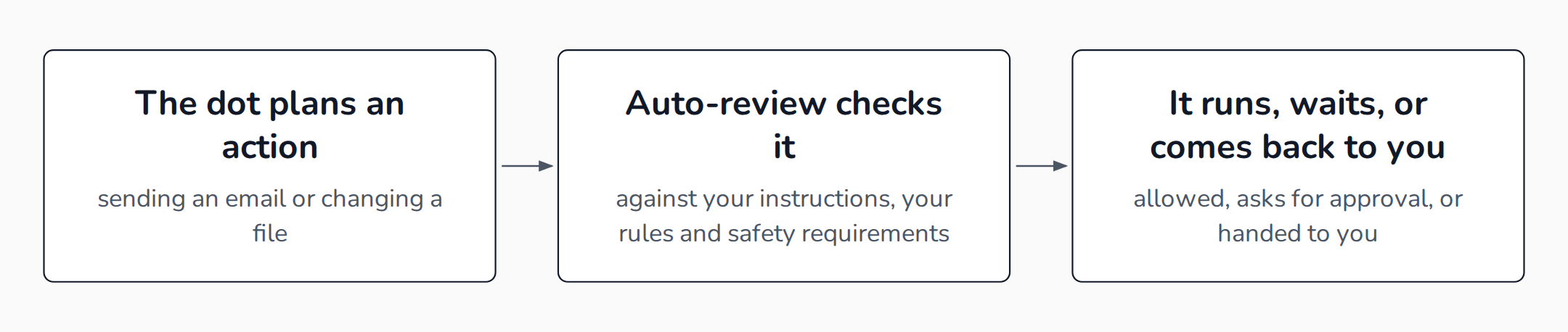 Auto-review sits between the plan and the action, and your custom rules cannot switch it off.
Some steps stay with you. Changing a password or transferring money requires you to take over.
In supported sign-ins, the model pauses while you type your password. If you share a password in chat or a document, nothing protects it.
A purchase on a card saved with a merchant needs approval too. You can give it in advance only if it covers that purchase. Permanently deleting data or installing software may need approval each time.
Sending has a further rule: recipients get stricter as the data gets more sensitive. In OpenAI's examples, health data needs a named recipient ("share my medical history with Dr. Thompson"). By default, a less sensitive detail like a phone number can go to a class of recipients ("any airline company").
Schedules are separate from proactive research. Assigned recurring tasks can include actions you've authorized, so a schedule is where a "without asking" rule does real work.
Event monitoring needs a step from you as well, because connecting Slack alone doesn't create a monitoring task. You have to name the events to watch.
OpenAI's tasks page gives this example of a scheduled instruction:
Check the connected planning channel each weekday at 9 AM Pacific for the
next four weeks. Update the project checklist when a deadline changes.
Message me in ChatGPT only if a deadline is at risk or you need a decision.
Confirm the schedule.
The docs tell you to ask your dot to confirm what it saved, then review it in the dot's profile in the desktop app. Activity lists its tasks as In progress, Scheduled or Completed, including background work, and Scheduled lists its recurring runs.
Where it breaks today
Websites, emails and documents can carry instructions meant to trick a dot. OpenAI's page says its protections help reduce the risk of malicious instructions causing an unwanted action, but they do not eliminate it.
A dot that reads your inbox is reading text from strangers, and the protections cannot promise it will ignore all of it, so a short connection list and a strict sending rule are the controls you hold.
The product is also new. One reviewer, Dan Shipper of Every, tested a dot for several days and called the version he tested "too buggy for me to recommend now", citing permission problems and dropped messages. His dot was often unable to connect to the in-app browser, and the two of them got confused about whether work should run on its own computer or in a separate thread.
He also called the dot a habit he kept reaching for. While he was rescheduling a flight, it warned him that the new time conflicted with a meeting request from Slack that he hadn't read.
Three smaller limits are easy to miss:
- Pause is narrower than it sounds. It stops the dot's current main task, but not every delegated task and not future scheduled runs. In the desktop app, open the dot's profile. Activity lists its tasks, including background ones, and you can stop a delegated task there. A delegated task is work the dot handed to another agent, such as Codex. Scheduled lists its recurring runs, and you disable one there.
- A finished run is not a verified result. OpenAI's docs say a completed run doesn't by itself confirm that the requested result was achieved or delivered.
- You cannot edit what it remembers. Its memory is shared with ChatGPT, and you currently cannot view, delete or directly modify individual dot memories. Deleting the dot removes its context. It does not undo changes already made in apps or recall messages already delivered, and disconnecting an app does not delete what the dot learned from it.
Which jobs fit a first dot, and what they cost
For a builder, the useful first jobs are read-heavy ones with a reviewable output. OpenAI's own examples include a dot that watches customer feedback and brings you pull requests with videos. Another is a Slack channel where a dot investigates new bug reports and prepares fixes for your review.
The dot proposes. You merge.
Production needs a tighter version of the same pattern. A vendor in the operations space, NeuBird, argues that production agents need wide read access and narrow write access with a human approving each change. It sells software for that, so treat it as a design checklist.
The checklist maps onto what a dot's rules already do: read widely, write narrowly, and approve what you cannot undo.
Your first dot comes with a Pro or Business Premium plan at no extra cost. Conversations with it don't count toward your ChatGPT usage limits. Tasks it starts in Codex or ChatGPT Work (another OpenAI product that runs delegated tasks) do count.
The plan also includes an allowance for deeper work, with extended limits for the first month. OpenAI gives no size for it.
The two OpenAI pages differ on the first month. The launch post describes extended limits. The help center says dots usage won't count toward plan allowances for that month and that terms come later.
OpenAI has not published terms past launch month, so the cost of a dot that starts Codex tasks all day is unknown.
Start with one job, in this order:
- Create the dot and connect one app that holds the data for the job, such as your repository. Leave your computer disconnected.
- In Settings, Personalization, Custom rules, add a rule that sets messages to other people, edits to shared files, publishing, and any change to your repository to "Ask before taking action".
- Ask for a read-only schedule, such as a weekday summary of open issues, written in the same shape as the example above. Include a time zone, an end date, and delivery to you in ChatGPT. A message to yourself is not one of the actions in step 2.
- Ask the dot to confirm what it saved, then check Scheduled.
- Review Activity for a week before widening access.
For related reading on how Build to Launch maps scheduled agents, see AI scheduled tasks: the complete map and the AI agents and automation hub.
FAQ
What is a ChatGPT dot?
A dot is an always-on agent inside ChatGPT that takes ongoing responsibility and keeps making progress between conversations. It runs on GPT-6 Astra with its own cloud computer. It works through the apps you connect, from email to files.
Can a dot use my own computer?
You decide. Local computer access starts turned off, and you connect it from the ChatGPT desktop app. You can revoke it from the same app.
Can a dot send messages without asking me?
It can, if a rule or your prompt covers that exact action, and Auto-review can still block the send. Drafting does not grant sending, and approving one message does not grant ongoing permission to contact people.
Does chatting with a dot use my ChatGPT limits?
No. Conversations with a dot don't count, but tasks it starts in Codex or ChatGPT Work do. The allowance for its deeper work has no published size.
Sources
- OpenAI, Introducing dots
- OpenAI Help Center, Getting started with your dot
- OpenAI Help Center, Dots privacy, security, and safety FAQs
- OpenAI, How we build safety, security, and privacy into dots
- OpenAI Developers, Control your dot
- OpenAI Developers, Get started with your dot
- OpenAI Developers, Tasks and memory
- Every, Vibe Check: OpenAI DevDay 2026
- Anima, OpenAI Dots hands-on
- NeuBird, Can OpenAI Dots Run Production Workflows Safely?
- OpenAI Developer Community, Unable to enable dots despite Business Premium
- Build to Launch, AI scheduled tasks: the complete map
- Build to Launch, AI agents and automation hub